Library Not Showing in exocad: 9 Causes and Fixes
You installed a fresh CAD library, but the list is empty — the library is not showing in exocad, even though the files seem to be in place. This is one of the most common problems a dental technician faces, and it almost always comes down not to the library itself but to the install path, the software version, or the active license module. Below are 9 reasons why exocad won't detect the library (exocad library not showing), and what to check in order so you don't end up reinstalling everything.
Where exocad Stores Libraries and Why They Aren't Visible
Cause #1 — wrong install path. exocad reads libraries only from its working folder: implant libraries go in the `library\implant` subfolder inside the DentalCAD install directory (usually a folder like `...\exocad\DentalCADApp\library`). If you unzip the archive to Downloads, the desktop, or the drive root, the software simply won't see them.
Cause #2 — the archive wasn't fully extracted. The library must sit as a folder with configuration files, not stay inside the ZIP. Sometimes a technician copies the archive itself or ends up with an extra nested folder of the same name. It's correct when a library folder appears in `library\implant` with configuration files inside it — not another folder with the same name.
Cause #3 — exocad wasn't restarted. The library list is read at startup. If you added files while the program was open, close DentalCAD and Model Creator completely and launch them again — only then will the new library appear in the list.
exocad Not Detecting Library After a Version Update
Cause #4 — incompatible version. Libraries are released for specific exocad releases (Galway, Matera, Rijeka, DentalCAD 3.x and newer). A library built for a newer release may fail to appear or throw a read error in an older version; the reverse is less common but happens too. Check which version the library is meant for and compare it with yours via Help → About.
This is also where a common mix-up hides: DentalCAD and exoplan are different products with their own library catalogs. Planning libraries marked plan/fda, for example Straumann PURE Ceramic Monotype plan fda, are meant for exoplan, not for the DentalCAD prosthetic module.
Library Installed but List Is Empty: Wrong Type
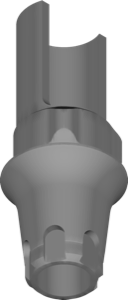
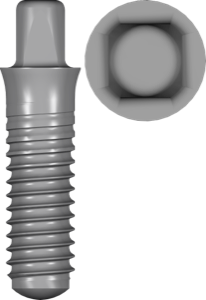
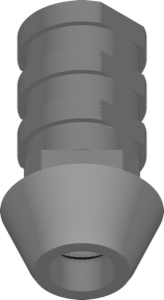
Cause #5 — the library type doesn't match the task. An implant library usually contains several components: the implant itself, the titanium base (Ti-Base), the temporary abutment, the scan body. If, say, you selected "crown on Ti-Base" in the wizard but the library has no such component, the slot will be empty even though the library is technically installed. Check that you're on the right wizard step and have chosen the correct restoration type.
Cause #6 — files sorted into the wrong subfolders. Inside `library` there's a split: `implant`, `implant-inhouse`, `modeltype` and others. An implant library that accidentally lands in the anatomy or models folder won't appear in the implant wizard. Angulated screw channel libraries behave the same way, for example MIS ASC: put it in the wrong place and the angulated screw channel won't show in the list.
Anatomy sets follow the same logic: a morphology library like el_MatRoberts must sit in the anatomy folder, otherwise it won't be in the tooth database of the design wizard.
Missing Module in the exocad License
Cause #7 — the module isn't activated. Implant libraries work only with an active Implant Module, model libraries only with Model Creator. If the module isn't part of your license (USB key/dongle), the library physically sits on the drive, but the corresponding wizard step is either unavailable or doesn't show its content. Check the license contents in the key configuration — this rules out a good half of "missing" implant libraries.
exoplan, Cyrillic and Antivirus: Non-Obvious Causes
Cause #8 — the library is for exoplan, but you're looking in exocad (or vice versa). Surgical sleeve libraries and planning libraries, for example MegaGen FullyGuided sleeve, live in the exoplan folder and work in Guide Creator. They won't appear in prosthetic DentalCAD — that's not a bug, just different catalogs.
Cause #9 — a path with Cyrillic characters, access rights, or antivirus. exocad handles Latin paths without spaces or special characters more reliably; a folder with Cyrillic letters in the path can sometimes interfere with reading the configuration. Also: if exocad is installed in `Program Files`, copying libraries requires administrator rights, otherwise the files won't be written. Antivirus can also block extraction — check the quarantine.
Quick Checklist If exocad Won't Detect the Library
- Files are extracted from the archive and sit in `library\implant`, not in Downloads
- exocad and Model Creator were fully restarted after installation
- The library version is compatible with your DentalCAD release
- The required license module is active (Implant Module / Model Creator)
- The library is meant for exocad, not for exoplan, and vice versa
If the library still doesn't appear after the checklist, download it again — the archive may have been corrupted during download. Current versions of implant and anatomy libraries for exocad and exoplan are gathered in the DentalLibs catalog.
FAQ: Why exocad Won't Detect the Library
Where should exocad libraries be installed?
Implant libraries go in the `library\implant` subfolder inside the DentalCAD install directory. After copying, the program must be fully restarted.
Why is the library installed but not in the list?
Most often exocad wasn't restarted, the archive wasn't fully extracted, or the files landed in the wrong `library` subfolder.
Why can't I see implant libraries even though the files are there?
Usually the Implant Module isn't activated in the license, or the library version doesn't match the exocad release.
An exoplan library doesn't work in exocad — is that normal?
Yes. exoplan and DentalCAD use different catalogs. Planning and sleeve libraries are needed for exoplan and Guide Creator, not for the prosthetic module.