How to Update an exocad Implant Library Without Losing Projects
Updating an implant library is one of those operations where it's easy to lose cases you've already started. The update implant library exocad query usually comes up at the worst moment: the manufacturer releases a new revision of the connection while you have several open projects in progress. Below is how to update an implant library in exocad and exoplan without losing your current projects: step by step, with a backup and verification on a test case.
Why updating a library in exocad breaks projects
exocad stores implant libraries in a separate installation folder, and each project references not a "brand in general" but a specific library and a specific position (implant, Ti-Base / titanium base, scan body) within it. The link runs through the name and an internal identifier.
The problem appears when a new version changes those identifiers, renames positions or removes outdated ones. A project opened on the old version simply can't find the geometry: the abutment is substituted incorrectly, the scan body "drops off" or the file won't open at all.
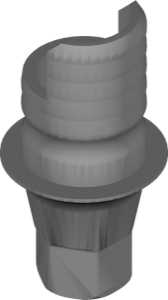
A clear example of versioning is Osstem/Hiossen TS SB LI V2: it's the second revision of the TS SB LI interface. If projects built on the first version sit on top of it, they need to be checked separately.
How to update an exocad implant library without losing projects: step by step
A safe update comes down to one principle: save first, then replace. The order of steps is as follows:
- Close exocad and DentalDB completely — with the application open, the library files are locked.
- Make a backup of the library folder (or the subfolder of the brand you need) in a separate location.
- Install the new version: through the official library installer or by manually copying the files into the library folder.
- Launch exocad and confirm that the new library appears in the list and opens in the project wizard.
- Open one old test project and make sure the implant and abutment are in place.
Only after a successful check should you move on to the rest of the cases. If the test project "breaks," you can restore the old version from the backup in a minute, losing nothing.
Library backup: what to copy before updating
The minimum backup is the library folder in the exocad installation directory. Copy it in full, or at least the subfolder of the brand you're updating, keeping the original name. That way you're guaranteed to be able to restore a working state.
It also makes sense to back up the DentalDB project database separately: if something goes wrong at the replacement stage, you'll still have both the original libraries and the original cases. Copying is easiest with the application fully closed.
- The library folder — the implant, abutment and scan body libraries themselves.
- The DentalDB project database — current and archived cases.
- A note with the old version number — so you know what to roll back to.
How to tell that a new library version has been released
Versions are encoded in the library name. It can be a revision suffix — like V2 on the TS SB LI connection — or a numeric designation such as 1.1, 5.3, 5.4.
The numeric scheme is clearly visible in the PDL anatomy lineup: CatBack1 2.0 is a major morphology update, while CatBack1 5.4 is the final fix in the 5.x branch. The same principle applies to implant libraries: the larger the first number, the more substantial the changes, and the more carefully you need to check compatibility with older projects.
Updating libraries in exoplan and where to get current versions
In exoplan the libraries are stored separately from exocad, but the logic is the same: backup, replace, verify the guided protocol on a single case before putting it into production. An example of a plan library is Neo Kings STI HexagonoInterno for exoplan.
Current revisions are convenient to track via a catalog: DentalLibs holds 1058 implant libraries for exocad and 1271 for exoplan, broken down by brand and version — so it's easier to notice that a new revision of exactly your connection has come out and update ahead of time, rather than in the middle of a case.
Frequently asked questions about updating implant libraries in exocad
Will updating a library delete my projects?
No, projects are stored separately from libraries. But a project may stop opening correctly if the new version changed the internal identifiers of positions. That's why you should make a backup before replacing.
Can I keep two versions of the same library?
Yes, if you save the folders under different names. Old projects will stay on the previous version, and you'll build new cases on the current one.
How do I roll back if projects break after an update?
Close exocad, delete the new library folder and put the saved copy of the old version back in its place. Projects will find the original geometry again.
Do I need to update the library if the old one works?
Not necessarily. Update if the manufacturer changed the connection geometry, added a Ti-Base or new positions that aren't in your version.