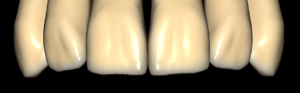
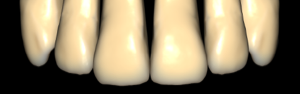
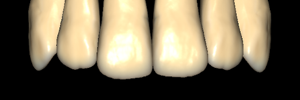
ZRS Tooth Library: 64 Anatomy Sets for exocad
ZRS tooth library is the largest series of anatomy libraries in the DentalLibs catalog: 64 reference tooth morphology sets for exocad DentalCAD. Out of 444 anatomy libraries in the catalog, ZRS holds the single biggest segment while remaining an almost undocumented topic. Let's break down what these sets contain, how to read their names and how to pick the right one for a crown, a bridge or a full-contour restoration.
Unlike implant libraries, there are no platforms, torques or connections here — just tooth shape. That's why ZRS is equally useful for a technician working on monolithic crowns and anywhere you need a predictable occlusal surface.
What is the ZRS tooth library in exocad
A tooth anatomy library is not an implant system or an abutment but a set of reference tooth shapes. exocad DentalCAD stores these shapes in a morphology database (tooth database) and projects the selected one onto the prepared situation when the design wizard proposes a crown shape. In essence, ZRS extends the program's standard library set with new morphology styles.
Each ZRS set works as a reference shape — the starting geometry the CAD engine builds on. You select a set, the program fits the shape to neighboring teeth and antagonists, and then you refine the surface manually. The base ZRS 00 gives a clean, balanced morphology — a convenient reference point when the case style isn't chosen yet.
64 ZRS sets: how the collection is structured
The collection follows two naming logics. The first is simple numbered sets like zrs01–zrs10: complete style sets of morphologies across the whole dental arch. The second is detailed variants with alphanumeric codes (F19 + 02 up-L and similar), where the set is tied to a specific segment and style.
Separately there are series with F and M prefixes, plus the named anterior block Anteriores-ZRS-F8 for the frontal group. For getting started, the popular base sets zrs03 and zrs08 are handy — they're the most requested positions of the series in the catalog.
- Base: zrs00–zrs10 — complete style sets across the whole arch
- F series: anterior and premolar variants with a buccal contour (F code)
- M series: morphologies with paired codes M01–M09
- Anteriores-ZRS-F8: a dedicated set for anterior teeth
- All sets — for exocad DentalCAD, assigned per case
What does F19 + 02 up-L mean in a ZRS library name
Long ZRS names encode not a random string of characters but a segment and a morphology style. In a designation like "zrs29 ua F19 + 02 up-L", the suffix up-L indicates the upper-left segment (upper-left), the F code defines the buccal/facial contour, and the second number is a paired variant (for example, a palatal shape or a posterior tooth).
In practice, F codes line up in a clear sequence by upper-jaw positions. This is handy when you pick a morphology for a specific tooth rather than for the whole arch:
- F22 + 08 — upper left lateral incisor
- F23 + 53 — upper left canine (zrs33 F23 + 53 up-L)
- F24 + 53 — upper left first premolar
- F25 + 10 — upper left second premolar
- F26 + 09 — upper left first molar
- F27 + 07 — upper left second molar
This mapping lets you assemble a restoration from style-matched segments instead of settling for a compromise within one general set.
How to choose a ZRS set for a clinical case
The choice depends on the scope of work. For a single crown or a short bridge, take a segmented F/M variant for the required position — that way you get a morphology already tailored to the specific tooth. For a full arch or an esthetic anterior, it makes more sense to take a complete style set (zrs01–zrs10) or Anteriores-ZRS-F8 so the shape reads uniformly.
If the patient's style isn't defined yet, start with the neutral ZRS 00: it gives calm geometry without a pronounced character, easy to adapt. Then compare a couple of candidates on the actual preparation — the shape that requires less manual refinement against the antagonist is usually the right one.
How to assign a ZRS library in exocad DentalCAD
ZRS sets are installed like ordinary anatomy libraries: the files go into the exocad morphology directory, after which they appear in the shape database and become available in the design wizard. Assignment is done per case — to a specific tooth or segment, not globally across the whole program.
During design you select the needed set from the shape list, and the CAD engine inserts it as reference morphology for the current situation. All sets of the series in the DentalLibs catalog are gathered in the exocad anatomy libraries section, so you can find the right style or a specific F/M segment in one place.
Frequently asked questions about the ZRS tooth library
What is the ZRS tooth library?
It's a series of anatomy libraries for exocad DentalCAD — 64 reference tooth morphology sets used as the starting shape when designing crowns, bridges and full-contour restorations.
What does up-L mean in a ZRS set name?
up-L means upper-left, the upper-left segment. The letter F before the number defines the buccal contour, and the second number is a paired morphology variant.
Which ZRS set should I start with?
For a neutral start, ZRS 00 works well, and among the popular base sets — zrs03 and zrs08. For a specific tooth, choose a segmented F variant for the required position.
Does ZRS work in exoplan or RealGUIDE?
No. ZRS are anatomy libraries for exocad DentalCAD. exoplan and RealGUIDE work with implant and surgical libraries, not with tooth morphology.