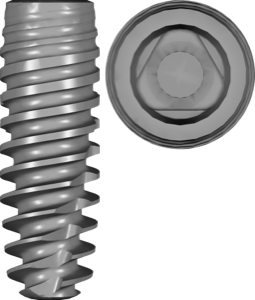
exoplan: implant won't fit the guide — blame the library
You planned the implant position in exoplan, moved on to generating the surgical guide — and the sleeve hole doesn't appear, or the implant you need isn't in the systems list. In most cases the reason is the same: the program is missing or has an incorrectly installed implant library (implant library missing). exoplan cannot build the drill channel and sleeve seat if it has no implant geometry and no surgical protocol data.
Let's look at how exoplan matches the implant to the sleeve and guide, why the hole isn't created, and how to fix it in a few minutes — without reinstalling the program.
Why exoplan doesn't create the implant hole
The problem almost always sits at the library level, not the program itself. exoplan works along the chain "implant → drill → sleeve → guide", and if even one link isn't loaded, the hole won't be built.
- The implant library isn't installed at all — the system is in your order, but the files aren't in exoplan.
- A restorative library from exocad is installed instead of the surgical (plan) version for guided implant placement.
- The library is in the wrong folder or installed for a different exoplan version.
- No sleeve system is selected in the guide creation dialog.
- The library version doesn't match the exoplan version and isn't read.
How exoplan links the implant, sleeve and guide
When you place an implant in the plan, exoplan takes from the library not only the 3D geometry of the implant body, but also the surgical protocol parameters: the drill sequence, the sleeve type and height, and the offset — the distance from the top plane of the sleeve to the implant platform (H-offset, or sleeve height).
This offset is exactly what defines the seating depth. If the library is incomplete, exoplan doesn't know at what height to place the sleeve relative to the implant, and the hole either isn't built or the implant "won't seat" at the correct depth. That's why a correct "implant + sleeve" pair matters just as much as the library itself — there's a separate article on choosing sleeves for your implant system in the DentalLibs catalog.
How to check whether the implant library is installed
First, make sure the program even sees the system you need. Open the implant selection in exoplan and find the brand and line — for example, a specific platform and diameter.
- Check that the brand, line and platform (NP/RP/WP) are present in the list.
- Verify the diameter and length — sometimes only some sizes are installed.
- Make sure the system has a note about guided-mode support next to it.
- Check the library folder path in the exoplan settings.
If the system isn't found in the list — there's no library, and you need to add it.
How to add the missing library to exoplan
Download the required plan library for your implant system, unpack the archive and place the folder in the exoplan library directory (the implant directory specified in settings). After that, restart the program — the system will appear in the implant list.
It's important to download a version compatible with your exoplan build: old libraries may not be read in newer builds and vice versa. In the DentalLibs catalog the files are tagged by program and version, so it's easier to grab the correct variant right away — for example, Anthogyr AXIOM BL PX plan for the Axiom Bone Level PX line.
A restorative library won't work for the guide
The most common hidden mistake: the technician installs a restorative library from exocad DentalCAD, expecting it to work in exoplan. It contains geometry for the abutment and crown (Ti-Base / titanium base), but carries no surgical protocol data — no drills and no sleeves.
Guided surgery needs a separate plan version. For example, Anthogyr AXIOM BL PX plan is exactly a surgical library for planning in exoplan, not a restorative set. The plan suffix in the name is a reliable sign that the library is designed for building the guide and sleeves.
Frequently asked questions about implant libraries in exoplan
Why won't the implant seat in the guide hole in exoplan?
Most often the implant library is not installed or the wrong one (restorative instead of plan) is installed. Without surgical protocol data, exoplan cannot build the channel and sleeve.
How is a plan library different from a regular one?
The plan version contains the drill sequence, the sleeve type and height, and the offset for guided surgery. A restorative library carries only geometry for the abutment and crown.
Where do I install the implant library in exoplan?
In the library folder specified in the exoplan settings. After unpacking, restart the program so the system appears in the list.
Why is the library installed but not read?
Usually because of a version mismatch: the library was made for a different exoplan build. Download the variant that matches your build.