Inside the exocad Library: Breaking Down .dentalCAD Files
An exocad library isn't a single file, it's a folder holding geometry, configuration and previews. Getting to grips with the exocad library file format is worth it when an implant won't appear in the list, a scan body won't seat on the model, or you're moving a built-up database between workstations. Below is what actually lives inside .dentalCAD, .constructionInfo and the implant, anatomy and teeth folders, and how these files connect to one another.
Understanding the structure saves time: instead of reinstalling the whole package, you pinpoint which file is missing or where a path broke.
How the exocad library folder is organized
exocad stores libraries in subfolders inside the installation, kept separate for implant components, tooth anatomy, artificial teeth for dentures and auxiliary tools. Each manufacturer and each system has its own nested folder, and a specific library is a directory with a set of files inside.
That's exactly why types are split apart in the DentalLibs catalog: over 1000 exocad implant libraries, 444 anatomical ones and 23 artificial tooth sets. Each is a folder that has to go into the right branch, not a standalone installer file.
What's inside the .dentalCAD and .constructionInfo files
The .dentalCAD file is the container for a specific case: it holds the order parameters and references the chosen implant system, restoration type and anatomy. Working alongside it is .constructionInfo, a description of the construction itself: which components are connected, which implant interface is used, and whether the seat is engaging or non-engaging.
The key point: the case itself contains no implant geometry, it only references the library by identifier. If the library is deleted or sits in the wrong folder, exocad opens the case but can't reconstruct the component seat.
- `.dentalCAD` — case parameters and library references
- `.constructionInfo` — construction makeup and the chosen interface
- XML configs — the description of components inside the library itself
- STL and previews — geometry and images for the selection interface
XML configuration: where the implant interface is defined
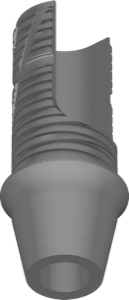
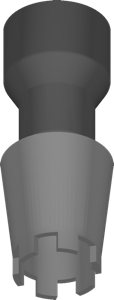
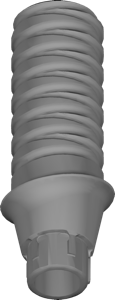
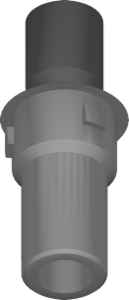
The heart of an implant library is the configuration XML files. They're what tell exocad which components make up the system: scan body (scan body / scan abutment), titanium base (Ti-Base), temporary abutment, pre-cap. For each component the config specifies the link to the connection interface and the positioning parameters relative to the platform.
This is also where the seat type is encoded: engaging (with anti-rotation on a hex or cone) or non-engaging (no rotational lock, for multi-unit work). For example, TitaniumBase EV ASA XS is flagged as non-engaging in the config, which affects whether the system will allow a single crown on this base.
Component geometry: STL, scan body and Ti-Base
The actual shape of the components lives in mesh files (usually STL): the body of the titanium base, the scan body geometry for positioning, and the mating surface of the interface. Alongside them sit the preview images you see in the selection list inside DentalCAD.
Correcting bases have more complex geometry: the angular correction of the screw channel, as in Nobel Ti-Base Ang Correct, is described both in the mesh and in the screw-access exit rules in the XML. Temporary components like Temp Abutment Profile EV hold separate emergence profile geometry.
Anatomical libraries are built differently: their main content is mesh models of tooth morphology (buccal profile, surface), and the configuration is minimal since there's no implant-interface link.
Why an exocad library won't appear in the list
The most common problem after a manual install is that the library is copied but exocad won't show it. The causes are almost always in the file structure, not the geometry itself.
- The folder sits in the wrong branch (implant instead of anatomy or vice versa)
- The nesting is broken — an extra wrapper folder ended up inside
- The library version doesn't match the exocad version
- The database wasn't refreshed after copying the files
- Some files (XML or STL) didn't fully copy during the transfer
Check the chain: correct branch → intact folder structure → database refresh in settings → restart. If the component you need is visible after that but still won't drop into the case, compare the seat type in the config against the task (single or bridge).
Prefab, premilled and Full Denture: different formats for different jobs
Not all libraries are built the same. Libraries for pre-milled blanks like Ankylos CX Ti AtlantisIO-FLO describe not the final component but a titanium blank with the interface already machined in, ready for milling a custom abutment. Their config defines the block boundaries and the mating geometry, not a finished crown profile.
Teeth for full dentures follow their own logic: libraries for Full Denture / DentureCAD, such as Unidesa Odi, ship in the OpenFiles format and include setup presets. This isn't about the implant interface anymore, it's about artificial tooth sets and their arrangement.
So when searching the DentalLibs catalog it's important to know not just the brand but the library type, since that determines both the file structure and which exocad folder it goes into.
Frequently asked questions about the exocad library format
Where are exocad libraries stored?
In the library subfolder inside the exocad installation, split by type: implant components, tooth anatomy, teeth for dentures and tools. Each library is its own folder.
Which file opens a case in exocad?
The case is stored in .dentalCAD, and the construction makeup in .constructionInfo. Both files only reference libraries, they don't contain their geometry.
Why is the library not visible after copying?
Usually the branch or folder structure is broken, the version doesn't match, or the database wasn't refreshed. Put the folder in the correct type and refresh the database in settings.
Can I edit the XML config by hand?
You can view it for diagnostics, but don't change geometry or offsets: the parameters are calibrated by the manufacturer, and edits lead to an inaccurate seat at the interface.